Firmware Update
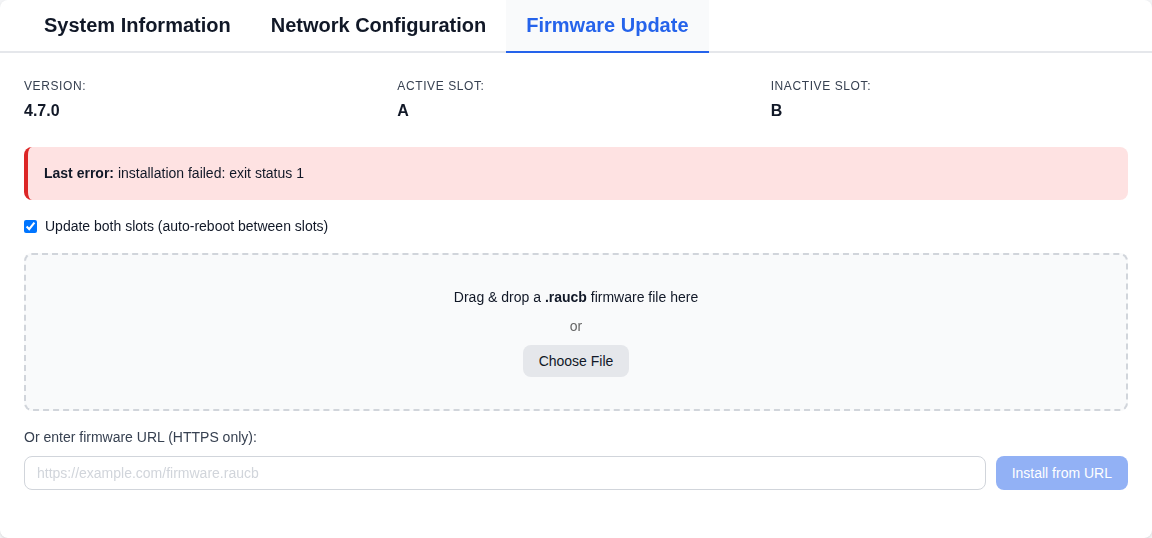
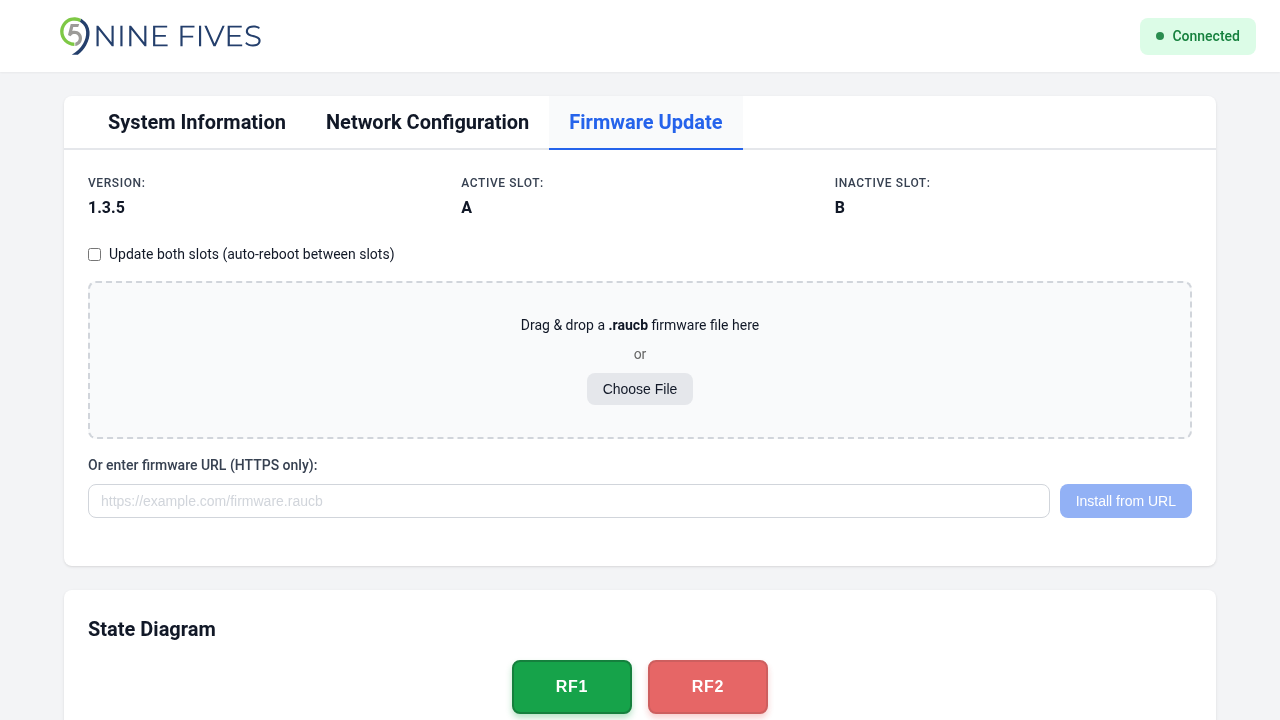
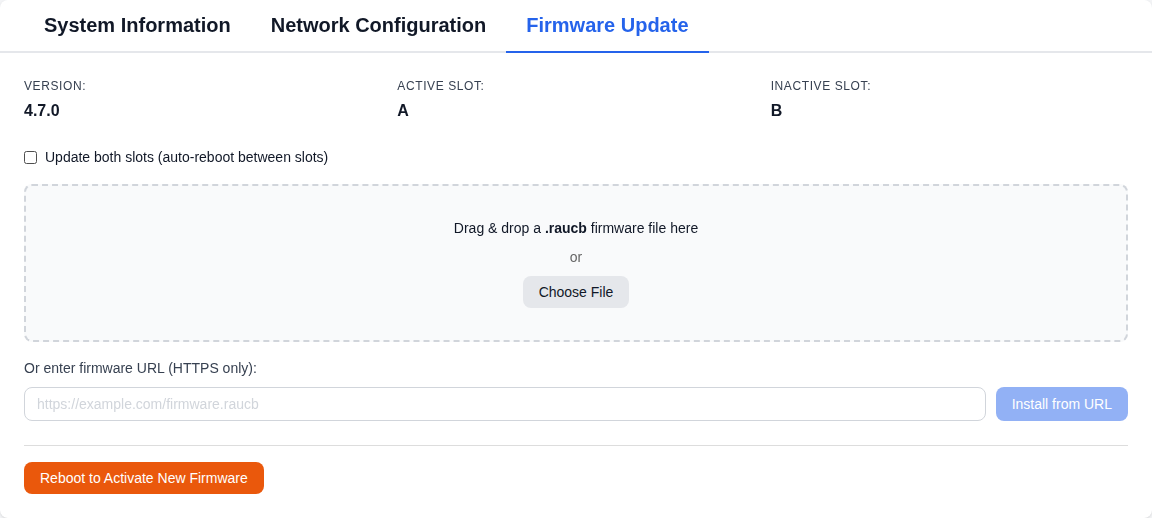
The Firmware Update tab displays the current firmware version and provides tools for updating the device firmware.
Firmware Information
| Field | Description |
|---|---|
| Version | The currently running firmware version |
| Active Slot | The firmware slot currently booted (A or B) |
| Inactive Slot | The alternate (not booted) firmware slot (A or B) |
The device uses an A/B slot scheme. Firmware is always installed to the inactive slot, so the running firmware is never modified while it is in use. A both-slots update replaces the previous firmware in both slots, so no copy of it remains to fall back to.
Update Methods
File Upload
Drag and drop a .raucb firmware bundle onto the upload area, or click Choose File to select one from your computer.
URL Install
Enter an HTTPS URL pointing to a .raucb firmware bundle and click Install from URL. The device downloads and installs the firmware directly. The server must present a valid TLS certificate.
Either way, the browser asks you to confirm before the install starts.
Update Modes
The Update both slots (auto-reboot between slots) checkbox selects the mode. It is checked each time the page loads.
| Mode | Description |
|---|---|
| Both slots (default) | The device installs the firmware to the inactive slot, reboots automatically into it, then installs it to the second slot. |
| Single slot | Uncheck Update both slots before uploading or installing from a URL. The device installs the firmware to the inactive slot only. After installation, click Reboot to Activate New Firmware to boot into the new firmware. The previous firmware stays in the other slot. |
Both-Slots Updates
The firmware bundle is too large to stage on the device's persistent storage, so it must be re-supplied for the second slot after the mid-cycle reboot. How that happens depends on how you started the update:
- File upload: keep the browser tab open. The page holds the bundle in memory and re-uploads it automatically once the device comes back up to finish the second slot.
- URL install: the device re-downloads the bundle from the URL on its own, so there is no need to keep the tab open.
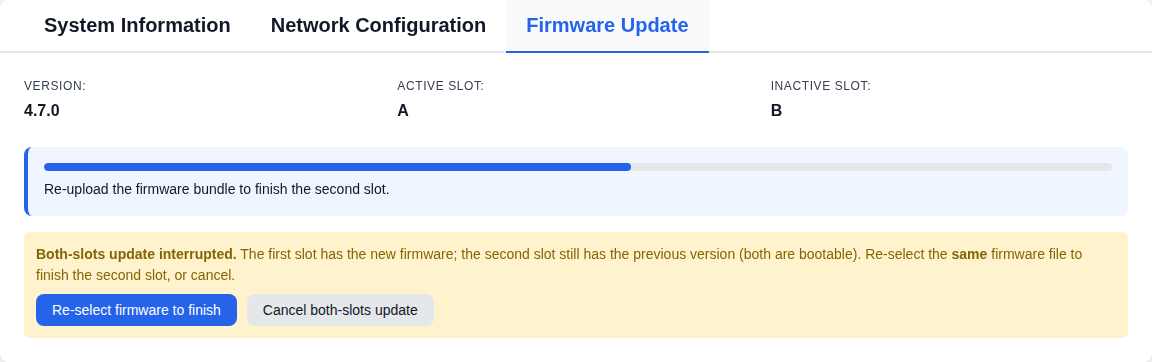
If a file-upload both-slots update is interrupted (for example the tab is closed or reloaded before the second slot finishes), the device is left running the new firmware on the first slot with the previous firmware still on the second slot. Both remain bootable. When you next open the firmware page, a Both-slots update interrupted banner offers two choices:
- Re-select firmware to finish: choose the same
.raucbfile to install it to the second slot. A file with a different version is rejected and the banner stays. - Cancel both-slots update: leave the second slot on the previous firmware.
Update Progress
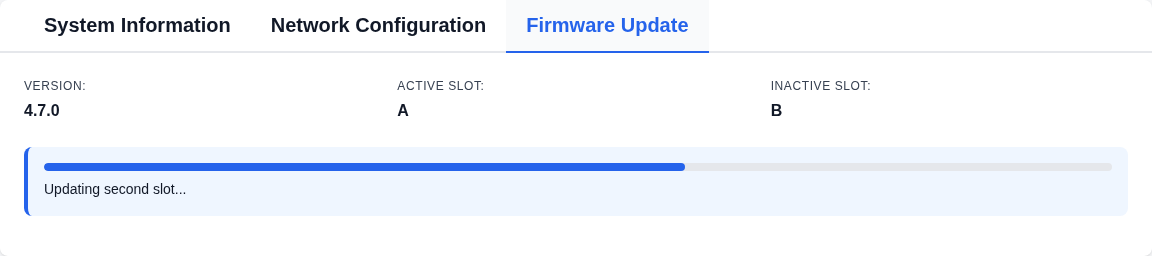
During an update, the checkbox, upload area and URL field are replaced by a progress bar and status message. The page polls for status every 2 seconds, and keeps polling across the automatic reboot during a both-slots update.
After a successful single-slot update, a Reboot to Activate New Firmware button appears. Clicking it (and confirming) reboots the device. The page reloads 30 seconds later.
After a successful both-slots update, the message Both firmware slots updated successfully. is displayed. No reboot is needed.
Errors
If an update fails, a Last error box below the firmware information shows the reason, and the upload area returns so you can try again. A request the device rejects (for example a non-HTTPS URL) is reported in a notification that disappears after a few seconds.