Touch UI - SPDT
The SPDT touch UI provides direct control of the RF path from the front-panel touchscreen. The main screen is built around two large port cards and a route summary so the active path is visible at a glance.
For the four-throw variant, see Touch UI - SP4T.
RF0 Active
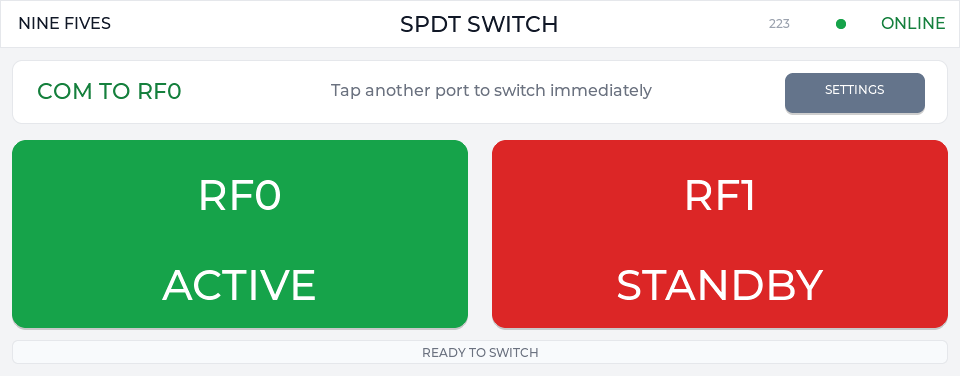
When RF0 is active, the RF0 card is green, the RF1 card is red, and the route summary reads COM TO RF0. Tapping RF1 immediately requests a route change through the local runtime API.
RF1 Active
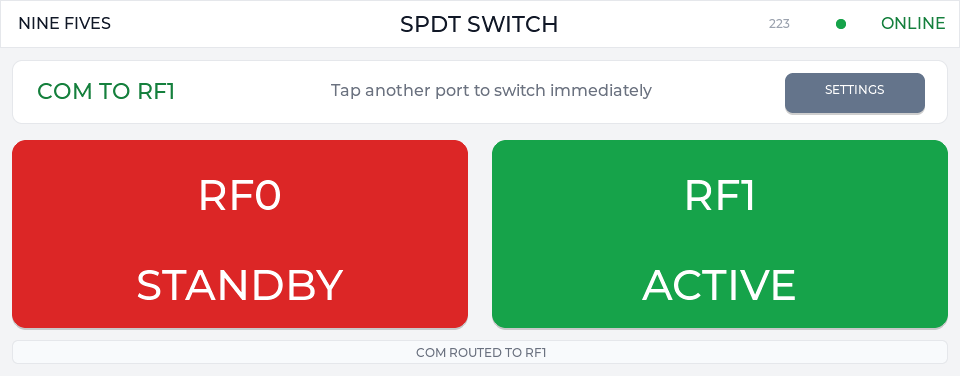
When RF1 is active, the RF1 card is green, the RF0 card is red, and the route summary reads COM TO RF1.
Network Settings
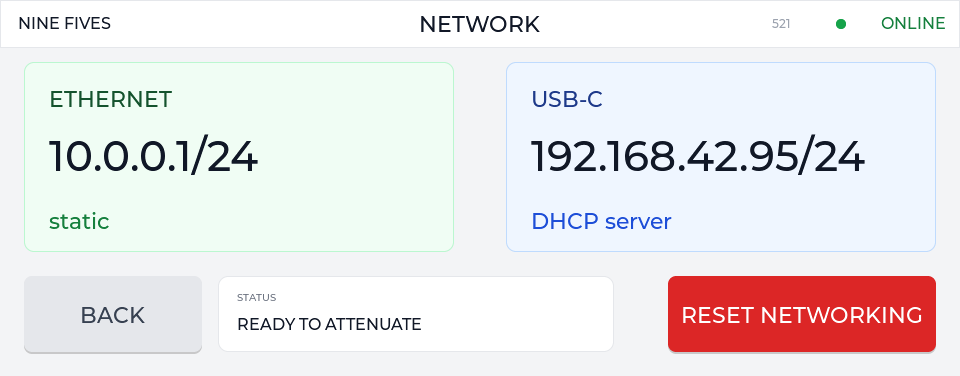
The Settings control opens the shared network overview. The overview shows Ethernet and USB-C live addresses, the active mode for each interface, and the reset networking action.
Ethernet Settings
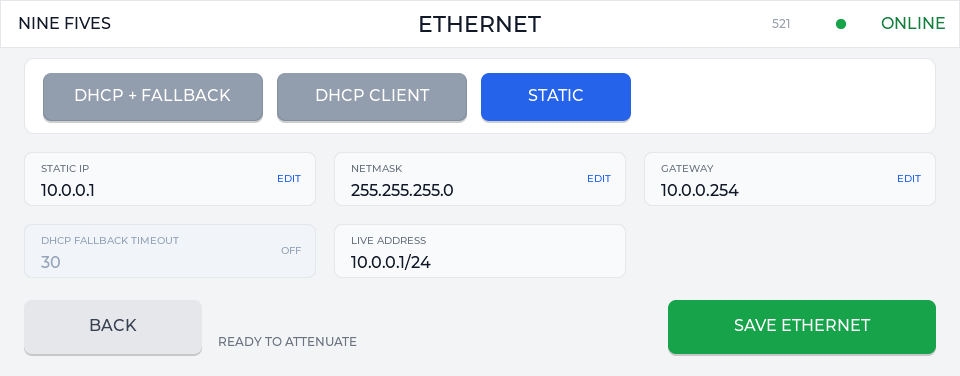
The Ethernet screen selects DHCP fallback, DHCP client, or static mode. It also exposes the configured IP address, netmask, gateway, fallback timeout, live address, and save action.
IP Editor
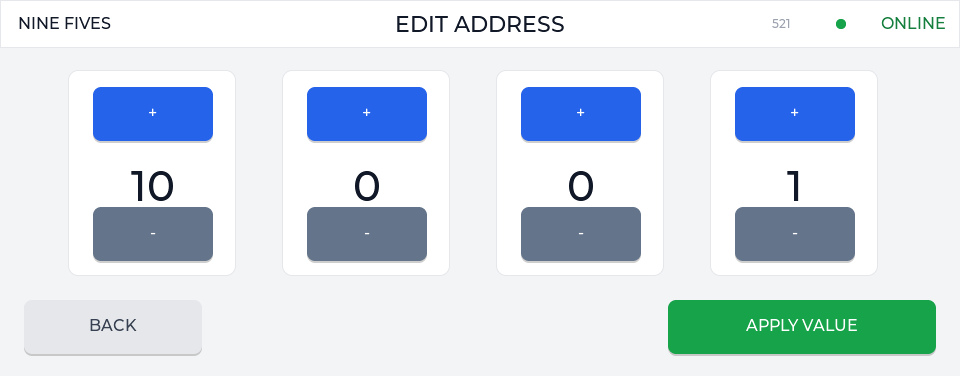
Address fields open the four-octet editor. Each octet can be adjusted with the + and - controls before applying the value.
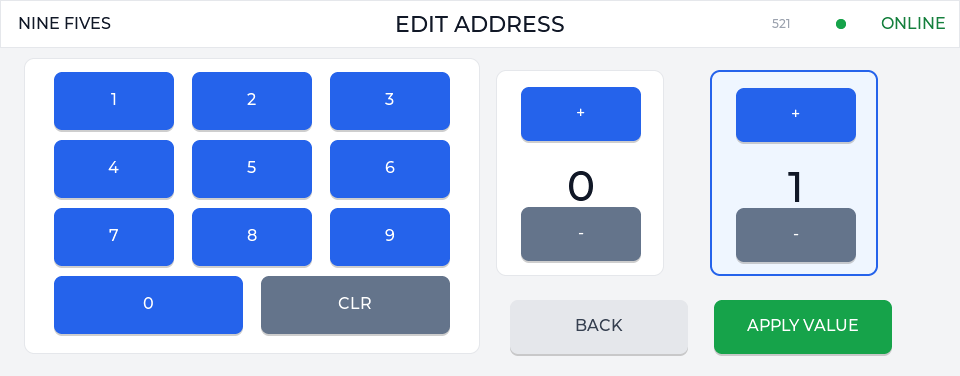
Tapping an octet opens the numeric keypad for direct entry. Apply Value writes the edited address back to the network settings screen.
USB-C Settings
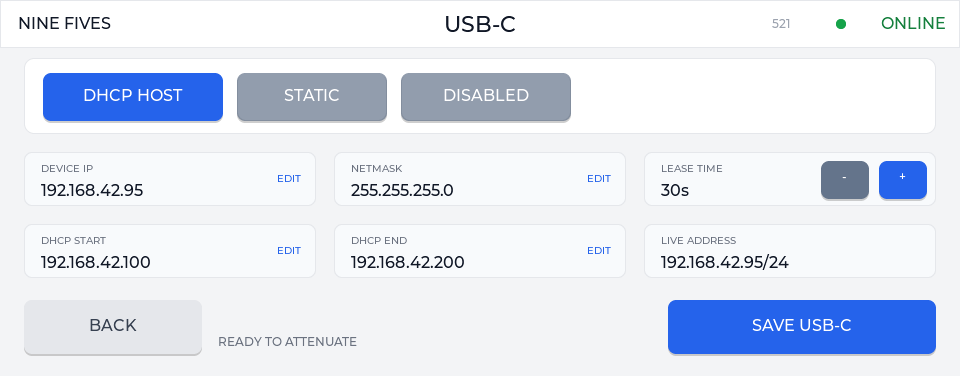
The USB-C screen selects DHCP host, static, or disabled mode. In DHCP host mode it also shows the DHCP lease time and address range.
Controls
| Control | Description |
|---|---|
| RF0 | Routes COM to RF0. |
| RF1 | Routes COM to RF1. |
| Settings | Opens the shared network configuration screens. |
| Status bar | Shows the latest runtime status or switching message. |