Firmware Update
The Firmware Update tab displays the current firmware version and provides tools for updating the device firmware.
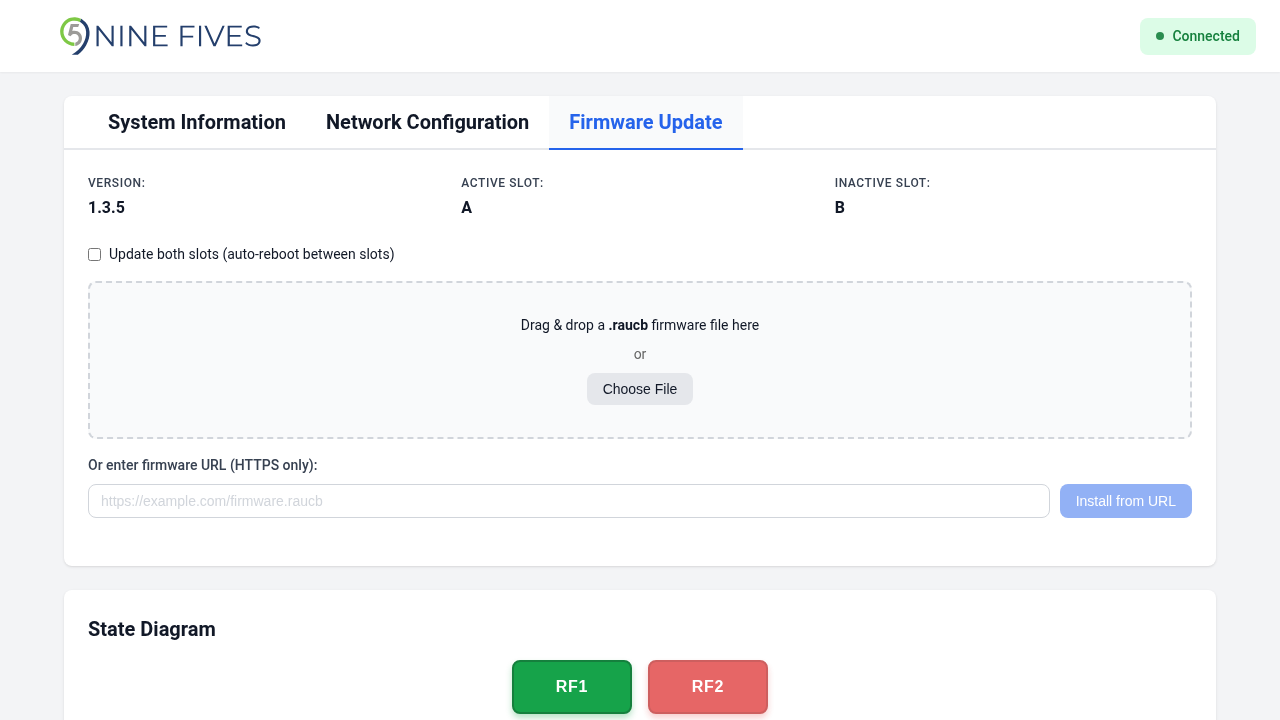
Firmware Information
| Field | Description |
|---|---|
| Version | The currently running firmware version |
| Active Slot | The firmware slot currently booted (A or B) |
| Inactive Slot | The alternate firmware slot and its version |
The device uses an A/B slot scheme. Firmware updates are installed to the inactive slot, so the currently running firmware is never modified during an update.
Update Methods
File Upload
Drag and drop a .raucb firmware bundle onto the upload area, or click Choose File to select one from your computer.
URL Install
Enter an HTTPS URL pointing to a .raucb firmware bundle and click Install from URL. The device downloads and installs the firmware directly.
Update Modes
| Mode | Description |
|---|---|
| Single slot (default) | Installs firmware to the inactive slot only. After installation, click Reboot to Activate New Firmware to boot into the new firmware. |
| Both slots | Check the Update both slots checkbox before uploading or installing from a URL. The device installs firmware to the inactive slot, reboots automatically, then installs to the second slot. |
Both-Slots Updates
The firmware bundle is too large to stage on the device's persistent storage, so it must be re-supplied for the second slot after the mid-cycle reboot. How that happens depends on how you started the update:
- File upload: keep the browser tab open. The page holds the bundle in memory and re-uploads it automatically once the device comes back up to finish the second slot.
- URL install: the device re-downloads the bundle from the URL on its own — no need to keep the tab open.
If a file-upload both-slots update is interrupted (for example the tab is closed or reloaded before the second slot finishes), the device is left running the new firmware on the first slot with the previous firmware still on the second slot — both remain bootable. When you next open the firmware page, a banner lets you re-select the same firmware file to finish the second slot, or cancel to leave it as-is.
Update Progress
During an update, the upload area is replaced by a progress bar and status message. The interface polls for status every 2 seconds, and keeps polling across the automatic reboot during a both-slots update.
After a successful single-slot update, a Reboot to Activate New Firmware button appears. After a successful both-slots update, a confirmation message is displayed.
If an error occurs, the error message is displayed below the firmware information.