Network Configuration
The Network Configuration tab allows you to view and modify the network settings for both the Ethernet and USB-C interfaces.
Ethernet Settings
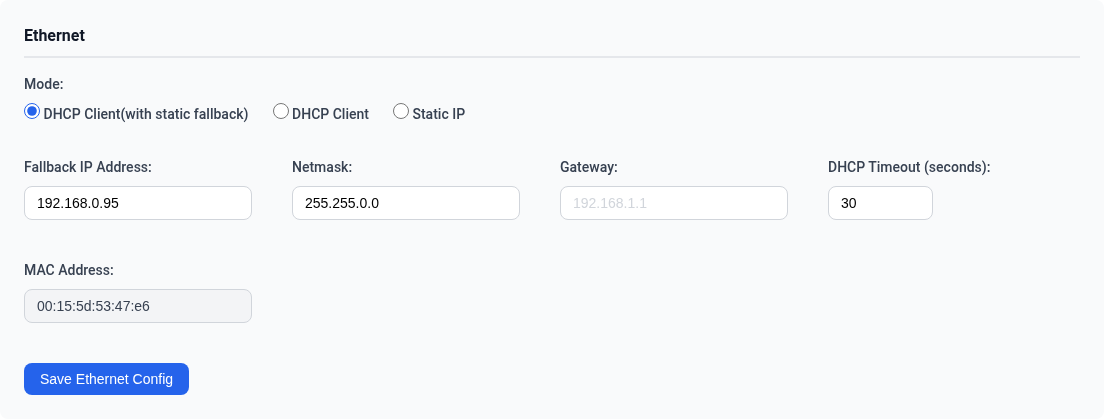
Mode Selection
Select the Ethernet operating mode using the radio buttons:
| Mode | Description |
|---|---|
| DHCP Client (with static fallback) | Attempts DHCP; falls back to the configured static IP address after a timeout. This is the factory default. |
| DHCP Client | Obtains an IP address from a DHCP server on the network. The IP address and netmask fields are disabled in this mode. |
| Static IP | Uses the configured IP address, netmask, and gateway. |
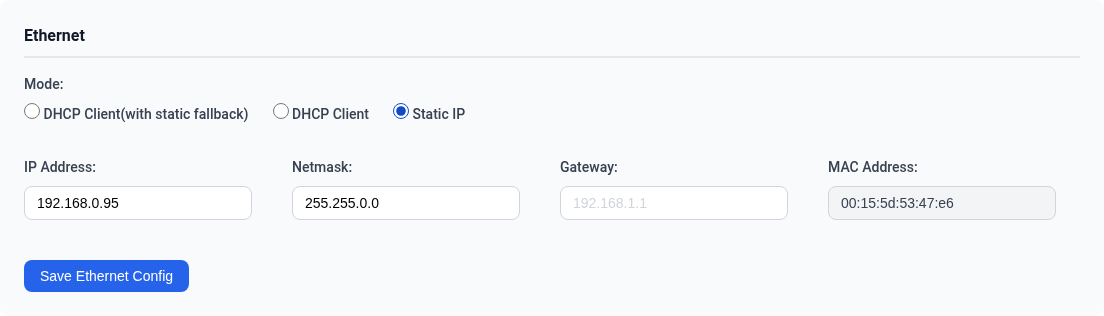
Configuration Fields
| Field | Description | Editable |
|---|---|---|
| IP Address / Fallback IP Address | The configured IP address. Label changes based on mode. | Yes (except in DHCP Client mode) |
| Netmask | The subnet mask | Yes (except in DHCP Client mode) |
| Gateway | The default gateway | Yes (except in DHCP Client mode) |
| DHCP Timeout | Seconds to wait for DHCP before falling back to static. Only shown in DHCP Client (with static fallback) mode. | Yes |
| MAC Address | The Ethernet interface MAC address | No (read-only) |
| Live IP | The currently active IP address on the interface | No (read-only) |
Click Save Ethernet Config to apply changes. Settings take effect immediately.
Warning
Changing network settings while connected via Ethernet may result in loss of connectivity. Ensure you have an alternative way to reach the device (e.g., via USB-C) before making changes.
USB-C Ethernet Gadget Settings
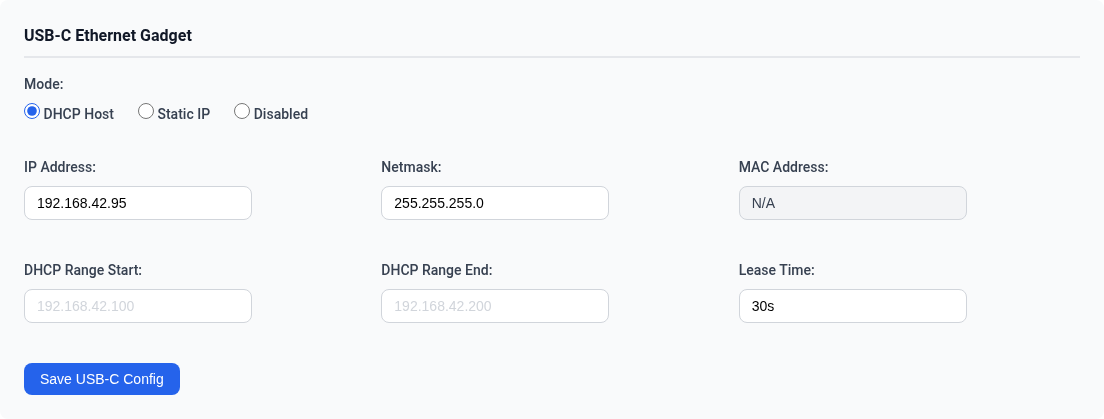
Mode Selection
| Mode | Description |
|---|---|
| DHCP Host | Runs a DHCP server, automatically assigning an IP address to the connected computer. This is the factory default. |
| Static IP | Uses the configured IP address and netmask. |
| Disabled | Brings down the USB-C network interface. All fields are hidden. |
Configuration Fields
| Field | Description | Editable |
|---|---|---|
| IP Address | The device IP address on the USB-C interface | Yes |
| Netmask | The subnet mask | Yes |
| MAC Address | The USB-C interface MAC address | No (read-only) |
| Live IP | The currently active IP address on the interface | No (read-only) |
When DHCP Host mode is selected, additional fields appear:
| Field | Description |
|---|---|
| DHCP Range Start | First IP address in the DHCP pool |
| DHCP Range End | Last IP address in the DHCP pool |
| Lease Time | DHCP lease duration (e.g., 30s, 1h, 24h) |
Click Save USB-C Config to apply changes.
Factory Reset
Click Reset Networking Settings to Factory Defaults at the bottom of the network configuration panel to restore all network settings to their factory defaults. A confirmation dialog appears before the reset is applied.
Warning
The device will briefly be unreachable while factory default settings are applied. The default configuration uses DHCP Client with Static Fallback mode on Ethernet (fallback IP: 192.168.0.95) and DHCP Host mode on USB-C (IP: 192.168.42.95).